---
title: How to Pin Columns
description: How to Pin Columns
---
[Skip to content](https://help.passfunctionalskills.co.uk/article/102-how-to-pin-columns#main-content)
[](https://help.passfunctionalskills.co.uk/?hsLang=en-gb)
Open main navigation
Close main navigation
- [Contact us](https://pass.tech/contact-us/)
[Contact us](https://pass.tech/contact-us/)
How can we help you?
- There are no suggestions because the search field is empty.
1. [Pass Functional Skills Help](https://help.passfunctionalskills.co.uk/?hsLang=en-gb)
2. [Providers](https://help.passfunctionalskills.co.uk/providers?hsLang=en-gb)
3. [Provider Tables and Reports](https://help.passfunctionalskills.co.uk/providers?hsLang=en-gb#provider-tables-and-reports)
# How to Pin Columns
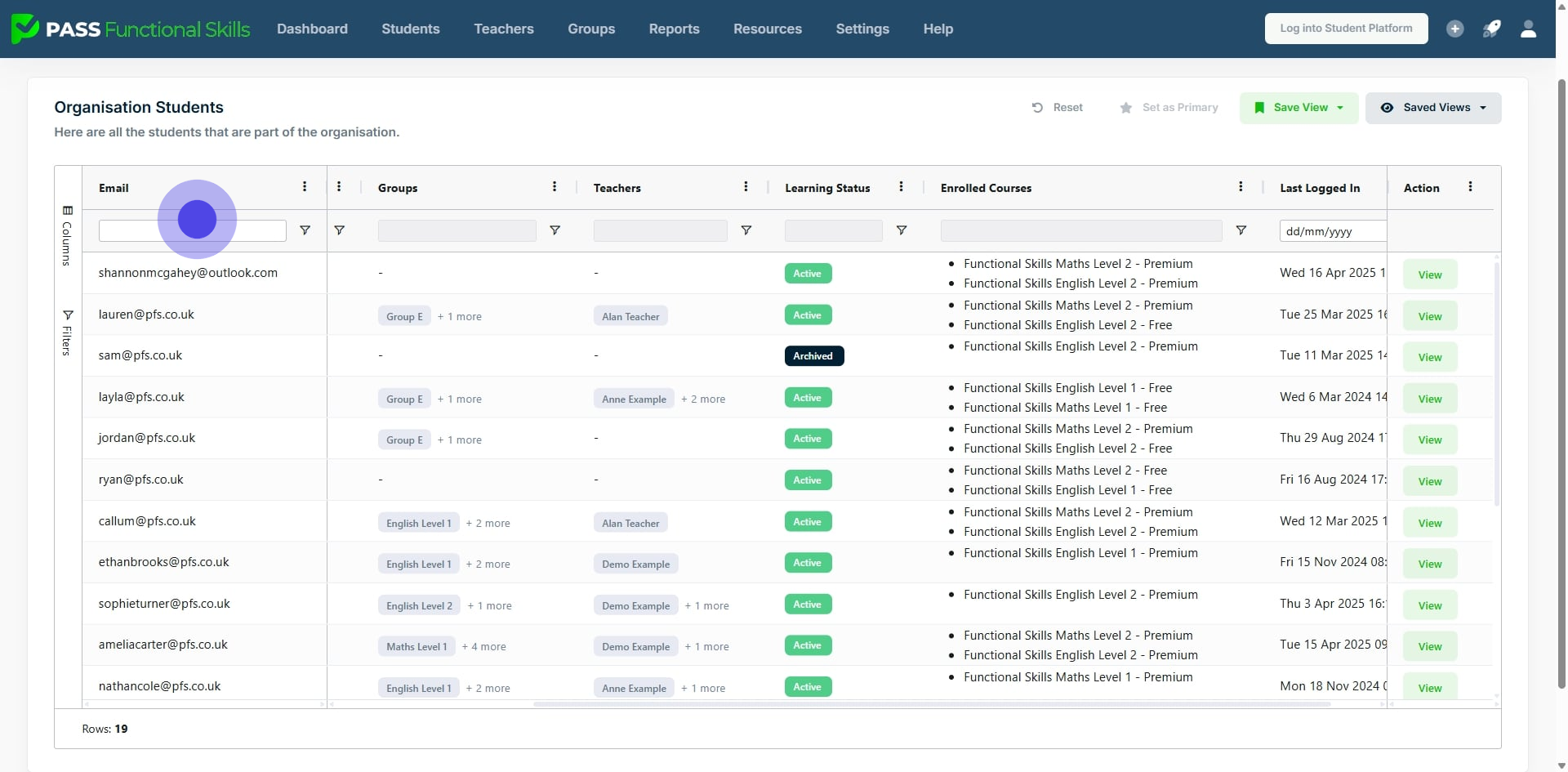
To refer to columns more easily, it is possible to fix columns, so that they remain in view while scrolling.
### Interactive Walkthrough
### Access our database of Supademo videos here:
[https://app.supademo.com/showcase/cm9indmzl002pwt0i2fosboin](https://app.supademo.com/showcase/cm9indmzl002pwt0i2fosboin)
### Step by Step Process
### [How to Pin Columns](https://app.supademo.com/demo/cm9k0vsty3sebljv524qw0gmx)
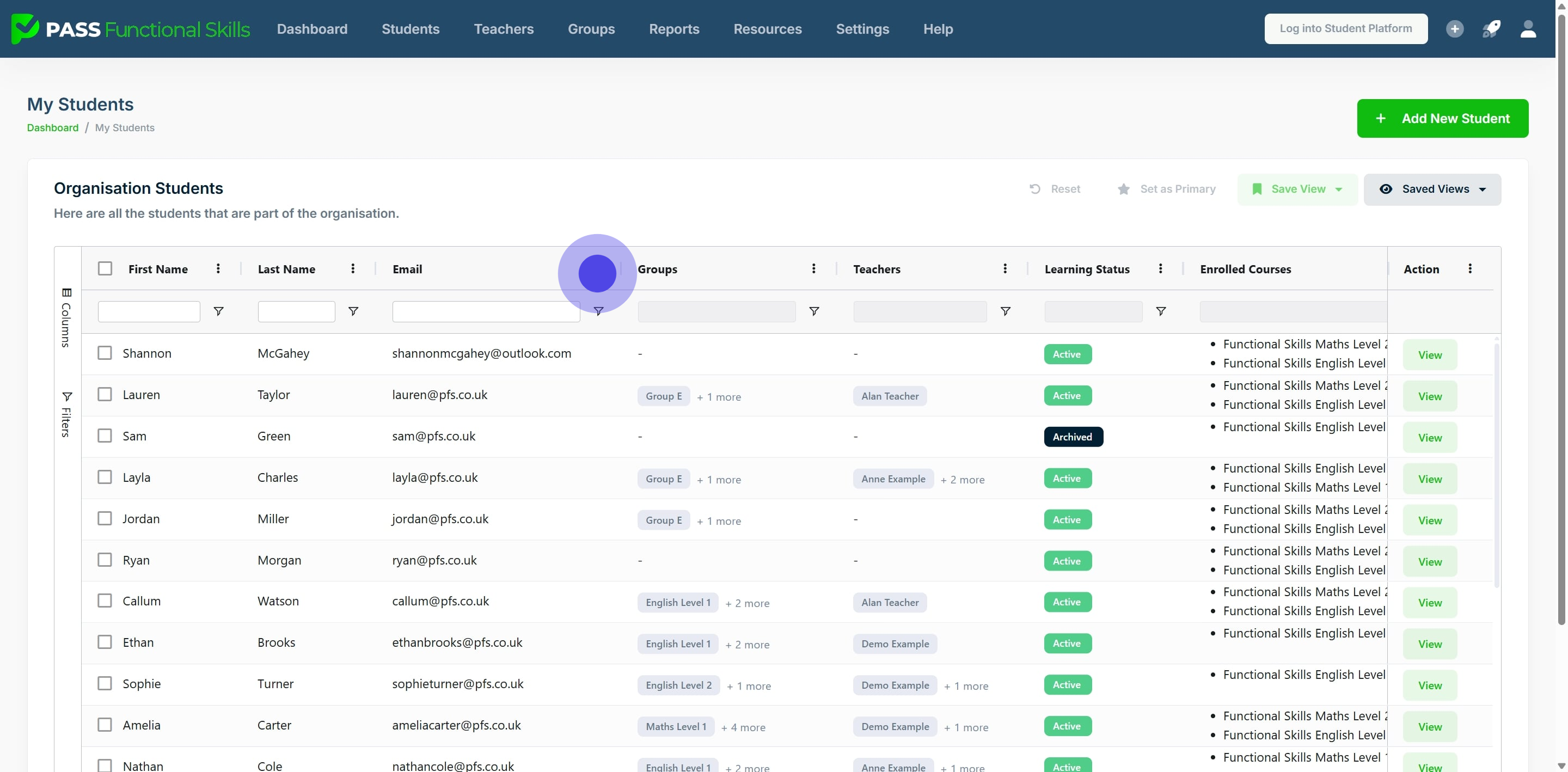
### 1. When viewing a table, you can pin the columns so that scrolling horizontally keeps this column in view. In this example, we will pin the "Email" column.
### To do this, click the 3 dots at the top right of this column.
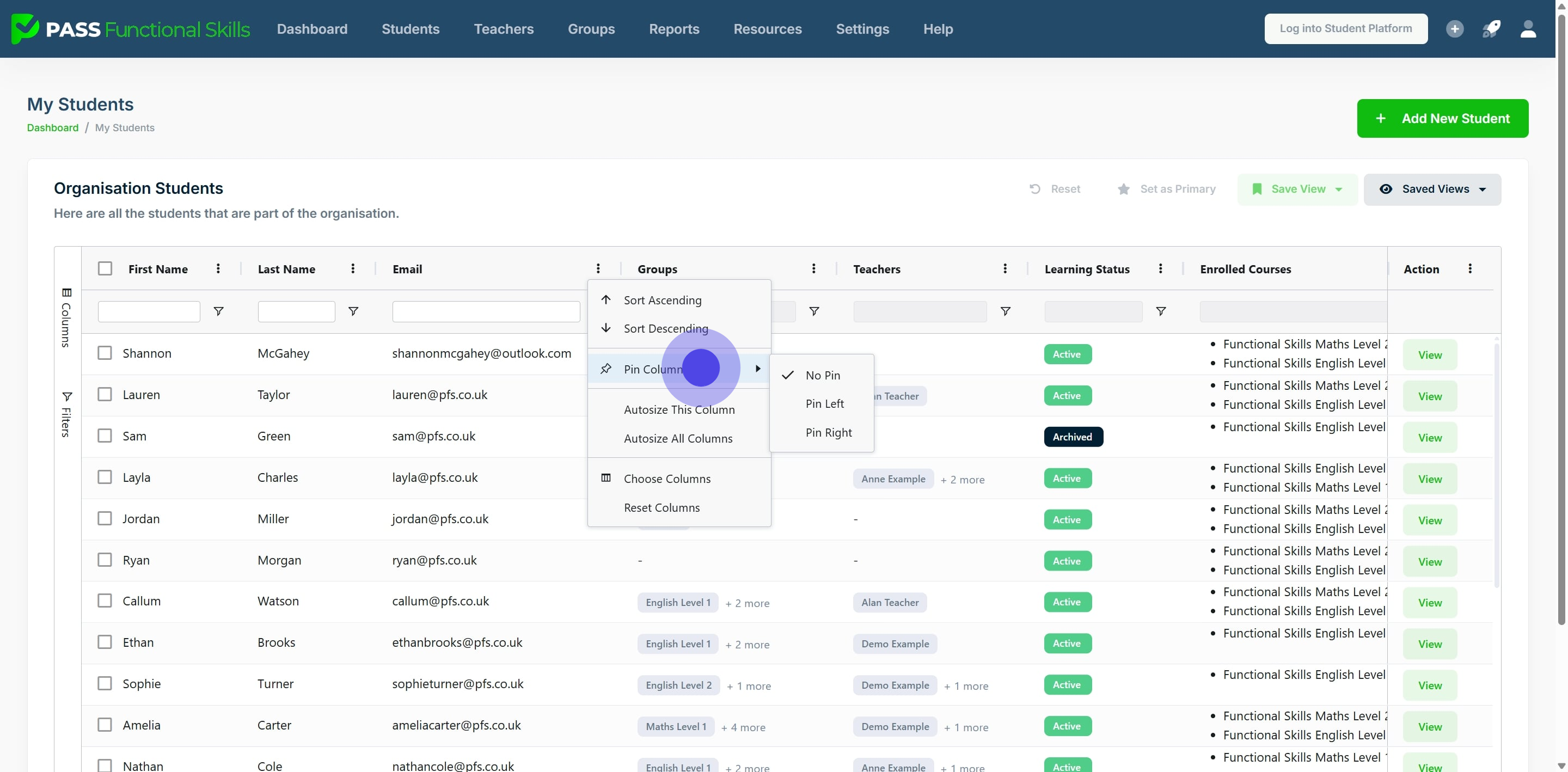
### 2. After that, click on "Pin Column".
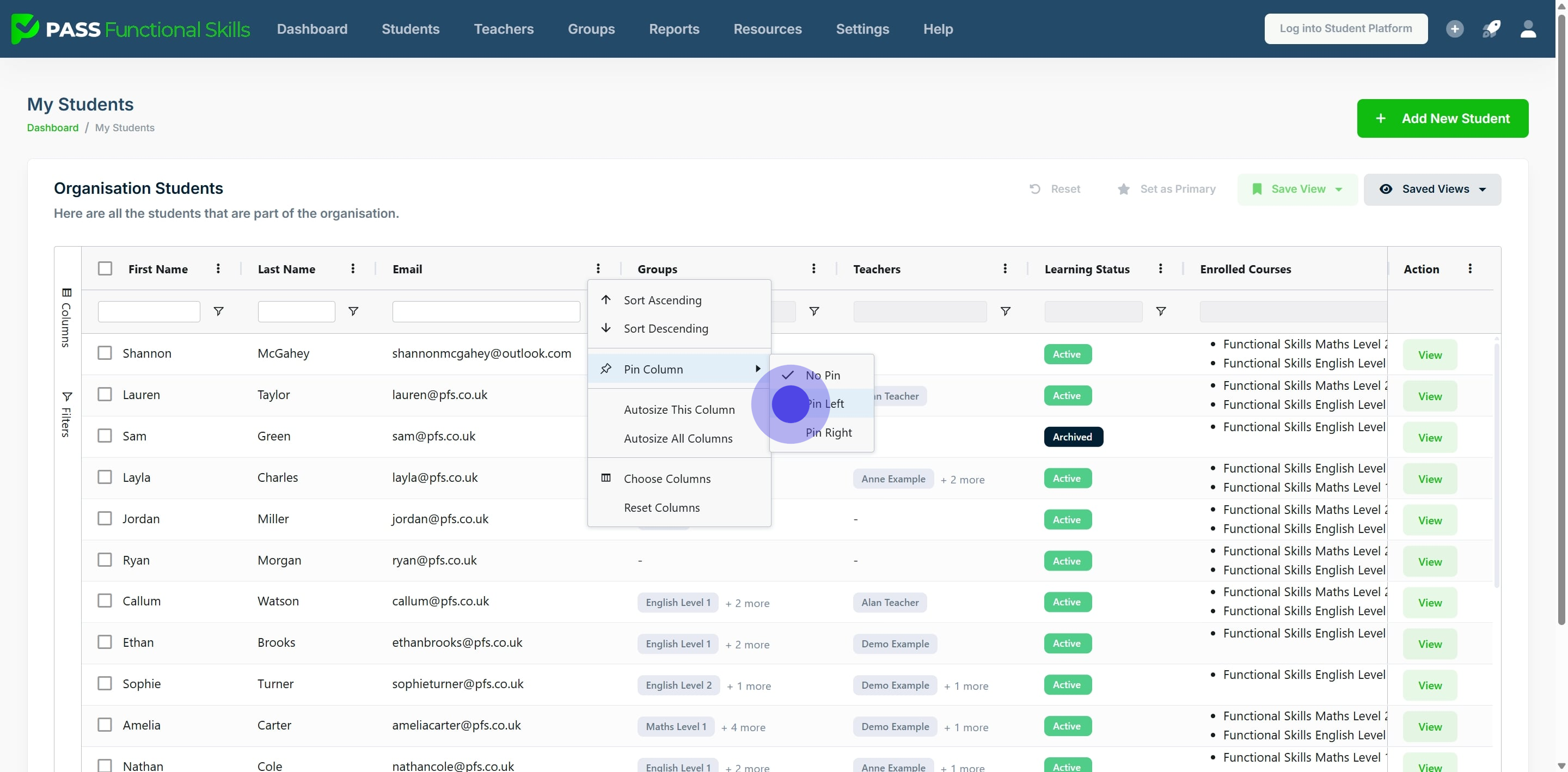
### 3. Then click "Pin Left" or "Pin Right", to Pin this column to either the left or the right of the table.
### This table in the example already has the "Action" Column pinned to the right by default.
### In the example, we will pin the "Email" column to the left of the table.
### 4. After pinning a column, click, hold and drag the horizontal scroll bar to scroll through the columns.
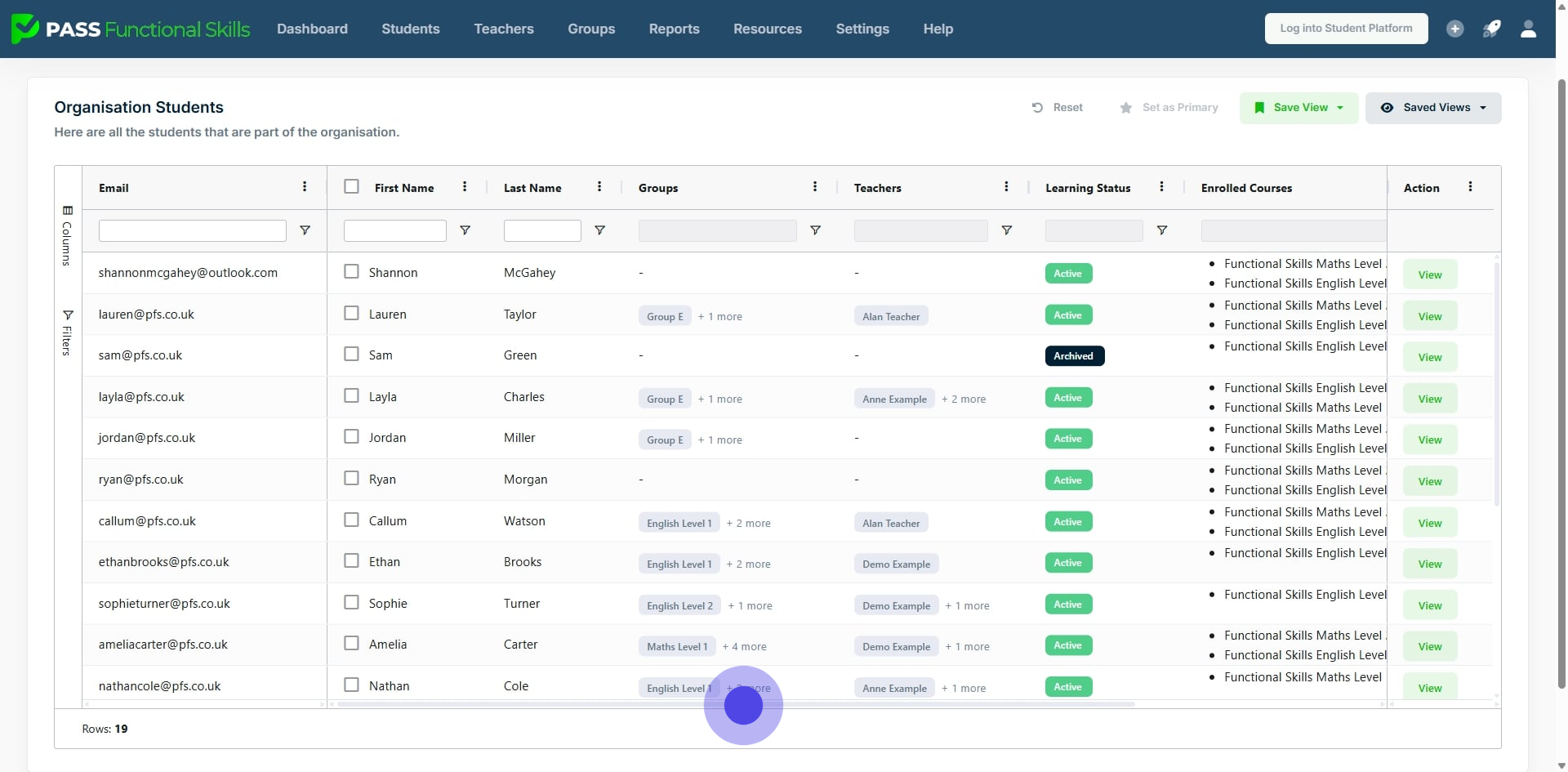
### 5. The pinned columns will stay in the table view, and unpinned columns can be scrolled through.
---
[*This workflow was created with Supademo.*](https://app.supademo.com/demo/cm9k0vsty3sebljv524qw0gmx)
- [Exam Information](https://help.passfunctionalskills.co.uk/exam-information?hsLang=en-gb#main-content)
- [Students](https://help.passfunctionalskills.co.uk/exam-information?hsLang=en-gb#students)
- [Open Awards Exam Format](https://help.passfunctionalskills.co.uk/exam-information?hsLang=en-gb#open-awards-exam-format)
- [Provider Students](https://help.passfunctionalskills.co.uk/exam-information?hsLang=en-gb#provider-students)
- [Providers](https://help.passfunctionalskills.co.uk/providers?hsLang=en-gb#main-content)
- [Teachers and Organisation Managers](https://help.passfunctionalskills.co.uk/providers?hsLang=en-gb#teachers-and-organisation-managers)
- [Forced Course Components](https://help.passfunctionalskills.co.uk/providers?hsLang=en-gb#forced-course-components)
- [Provider Tables and Reports](https://help.passfunctionalskills.co.uk/providers?hsLang=en-gb#provider-tables-and-reports)
- [General Updates](https://help.passfunctionalskills.co.uk/providers?hsLang=en-gb#general-updates)
- [Reporting](https://help.passfunctionalskills.co.uk/providers?hsLang=en-gb#reporting)
- [Functional Skills Basics](https://help.passfunctionalskills.co.uk/providers?hsLang=en-gb#functional-skills-basics)
- [Integrations](https://help.passfunctionalskills.co.uk/providers?hsLang=en-gb#integrations)
- [Students' Accounts](https://help.passfunctionalskills.co.uk/providers?hsLang=en-gb#students-accounts)
- [Exam Basics](https://help.passfunctionalskills.co.uk/providers?hsLang=en-gb#exam-basics)
- [Course Features](https://help.passfunctionalskills.co.uk/course-features?hsLang=en-gb#main-content)
- [Progress on the Course](https://help.passfunctionalskills.co.uk/course-features?hsLang=en-gb#progress-on-the-course)
- [General](https://help.passfunctionalskills.co.uk/course-features?hsLang=en-gb#general)
- [Diagnostic Assessments](https://help.passfunctionalskills.co.uk/course-features?hsLang=en-gb#diagnostic-assessments)
- [ExamReady](https://help.passfunctionalskills.co.uk/course-features?hsLang=en-gb#examready)
- [Course Material](https://help.passfunctionalskills.co.uk/course-features?hsLang=en-gb#course-material)
[](https://help.passfunctionalskills.co.uk/?hsLang=en-gb)
[mailto:info@pass.tech](mailto:info@pass.tech)
Copyright © 2026,